 SkyLedgr
Use a new phone or a different account
A phone's logbook is linked to one account at a time.
Make an encrypted backup first
Do this before you erase or replace anything. See Back up and restore. Keep the file and its password somewhere safe.
Sign in on a new phone
- Install SkyLedgr.
- Open More, then Sync.
- Sign in with the same method you used before. See Cloud sync.
- Wait for Up to date.
Your flights, people, aircraft and signed endorsements download. Endorsement drafts do not, because they never leave the phone that wrote them.
Choose a logbook
If the phone already has flights, Choose a logbook appears. It shows the flights on this phone and the flights in the account.
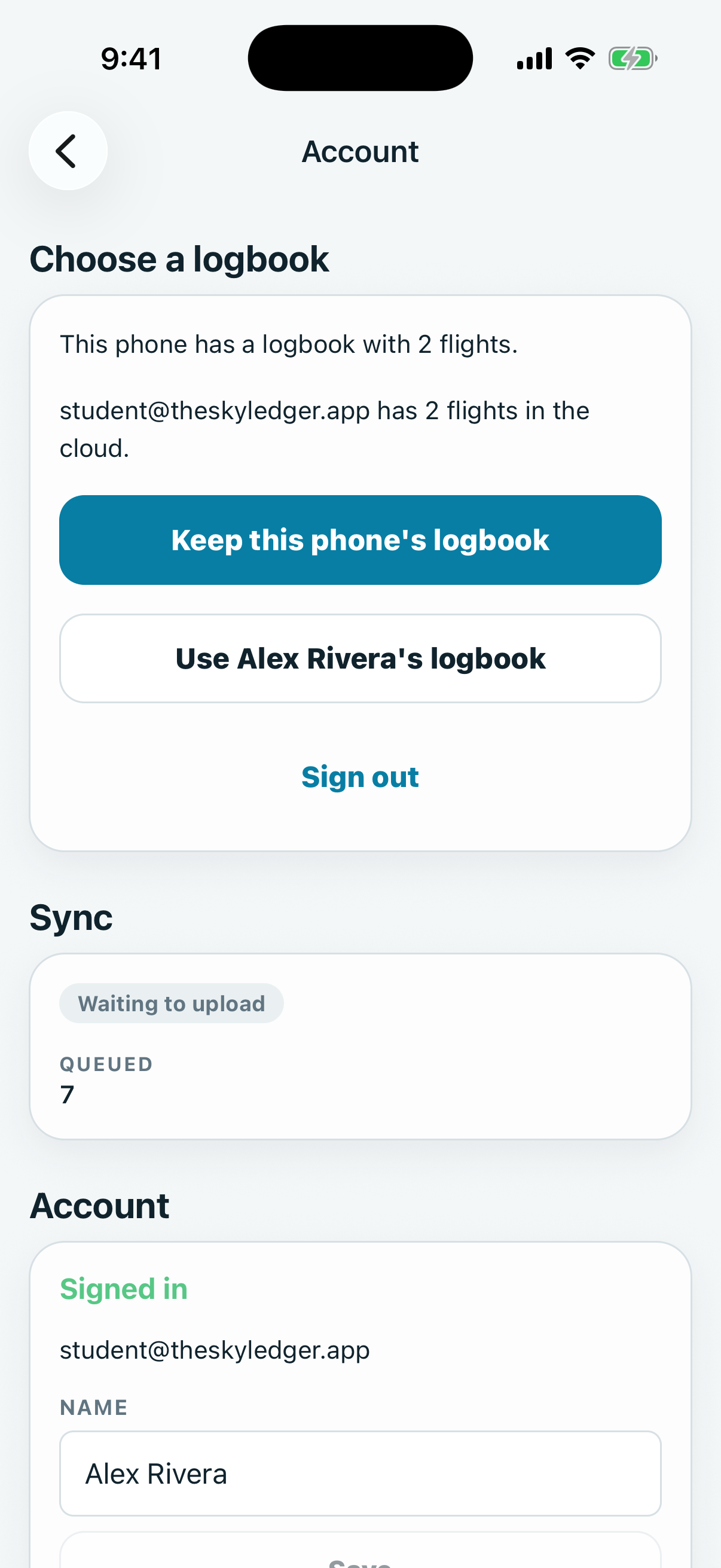
- Keep this phone's logbook. Links this phone to the account and uploads this phone's logbook. Anything already in that account is added to this phone too.
- Use <your name>'s logbook, or Use the account's logbook when no name is saved or it is long. Erases this phone's logbook, then downloads the account's. The cloud is not changed. This cannot be undone, so make a backup first.
- Sign out. Changes nothing.
To use the account's logbook:
- Tap Use <your name>'s logbook or Use the account's logbook.
- Tap Continue.
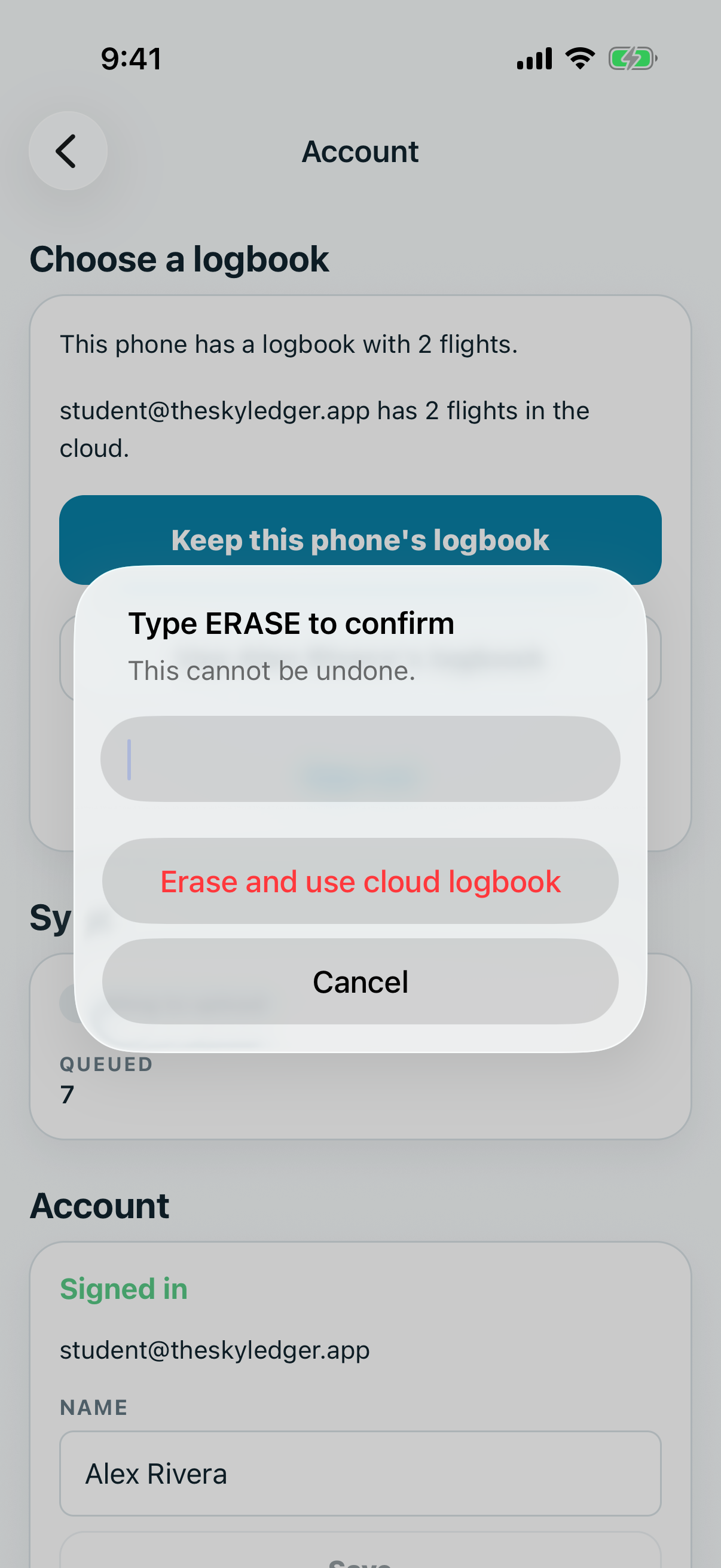
- Type ERASE.
- Tap Erase and use cloud logbook.
No backup yet? Tap Export encrypted backup instead, make one, then start again.
Unlink this phone
Use this when the phone is linked to another account. SkyLedgr then says "This phone's logbook is linked to" that account.
- Open More, then Sync.
- Tap Unlink this phone.
- Tap Unlink.
The logbook on the phone stays. It stops backing up to the old account until you sign in again.
Erase this phone's logbook
- Sign out first.
- Open More, then Create backup.
- Find Erase this phone's logbook.
- Tap Erase this phone's logbook.
- Tap Continue.
- Type ERASE.
- Tap Erase logbook.
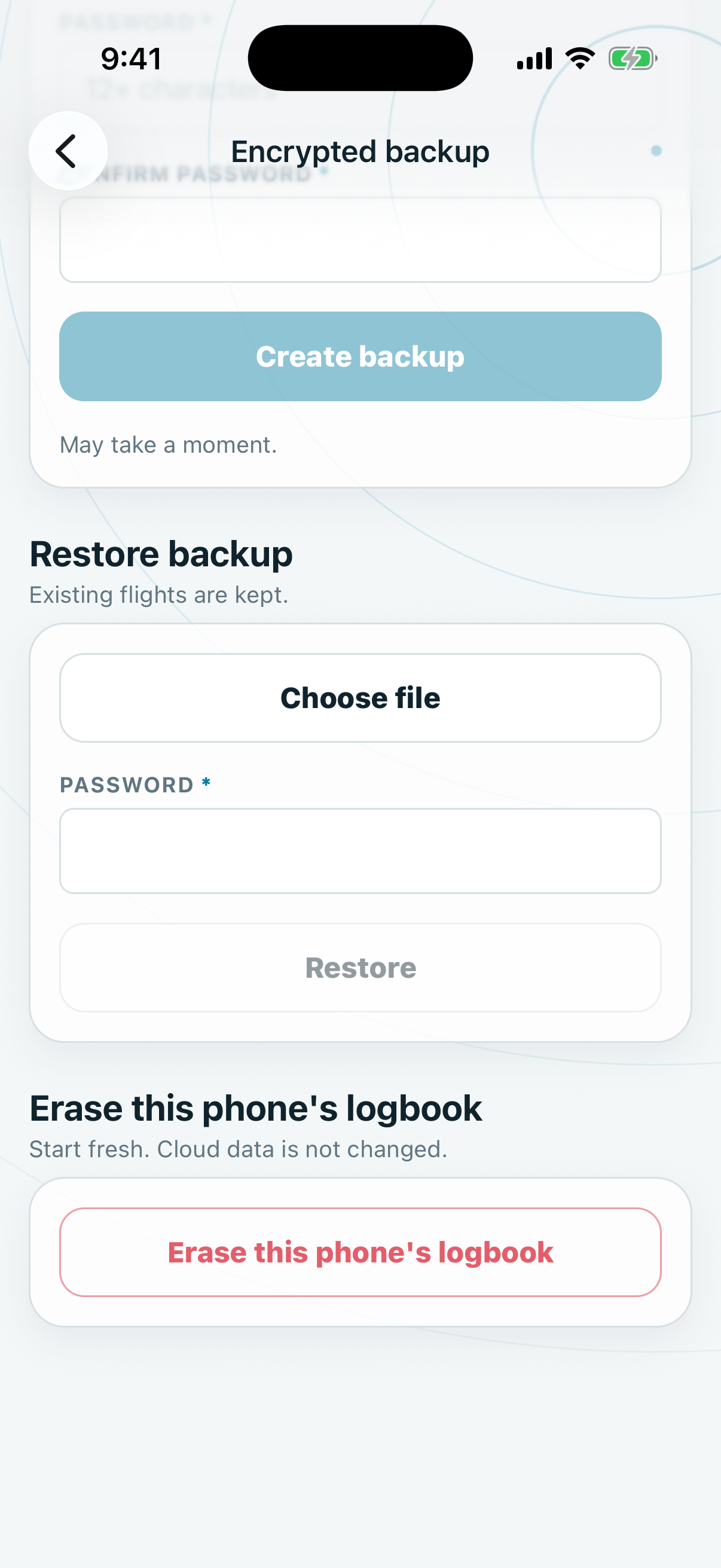
This erases flights, people, aircraft, endorsements and scans on this phone. It does not change the cloud.
No backup yet? Tap Export encrypted backup at step 5 instead, make one, then start again.