 SkyLedgr
Cloud sync
SkyLedgr works without an account. Sign in to back up your logbook and use it on more than one phone.
What syncs
- Flights
- People
- Aircraft
- Signed endorsements
Endorsement drafts stay on the phone. They never sync, and neither does deleting one.
Sign in
- Open More.
- Tap Sync. Or tap Sign in at the bottom.
- Sign in with Apple or Continue with Google. Or enter Email and Password and tap Sign in.
- To make a new account, enter Email and Password and tap Create account.
- If asked, enter the 6-digit email code in Code and tap Confirm.
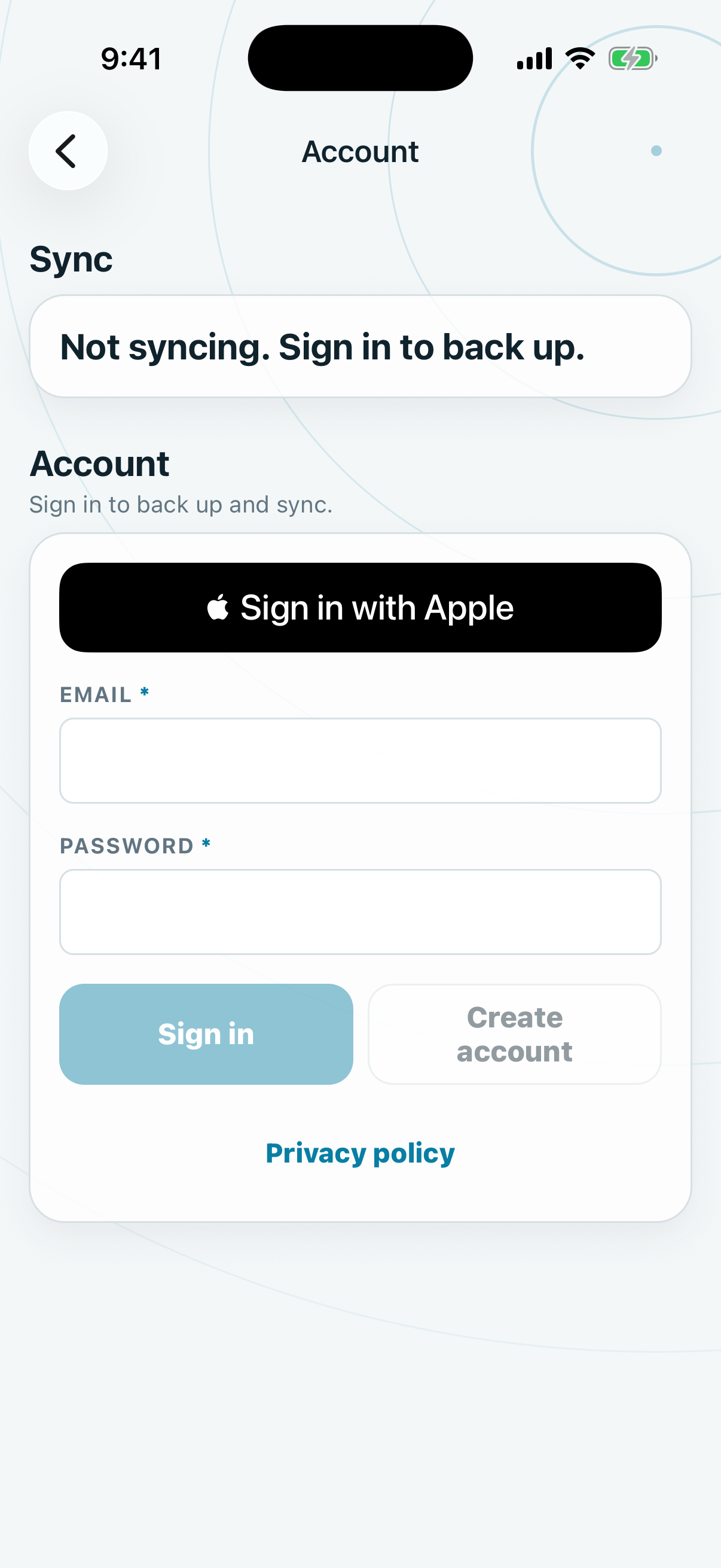
Under Account you see Signed in and your email.
Read the status
The status appears on More and on the Account screen.
- Not syncing. Sign in to back up. You are not signed in, or sync is not available. More shows Local only.
- Syncing. Changes are moving.
- Waiting to upload. Changes are queued on the phone. Queued shows how many. Tap Sync now.
- Needs attention. An upload failed, a conflict needs a choice, or older flights need your approval. Tap Sync now, Upload, or Review conflicts.
- Up to date. Last sync shows when.
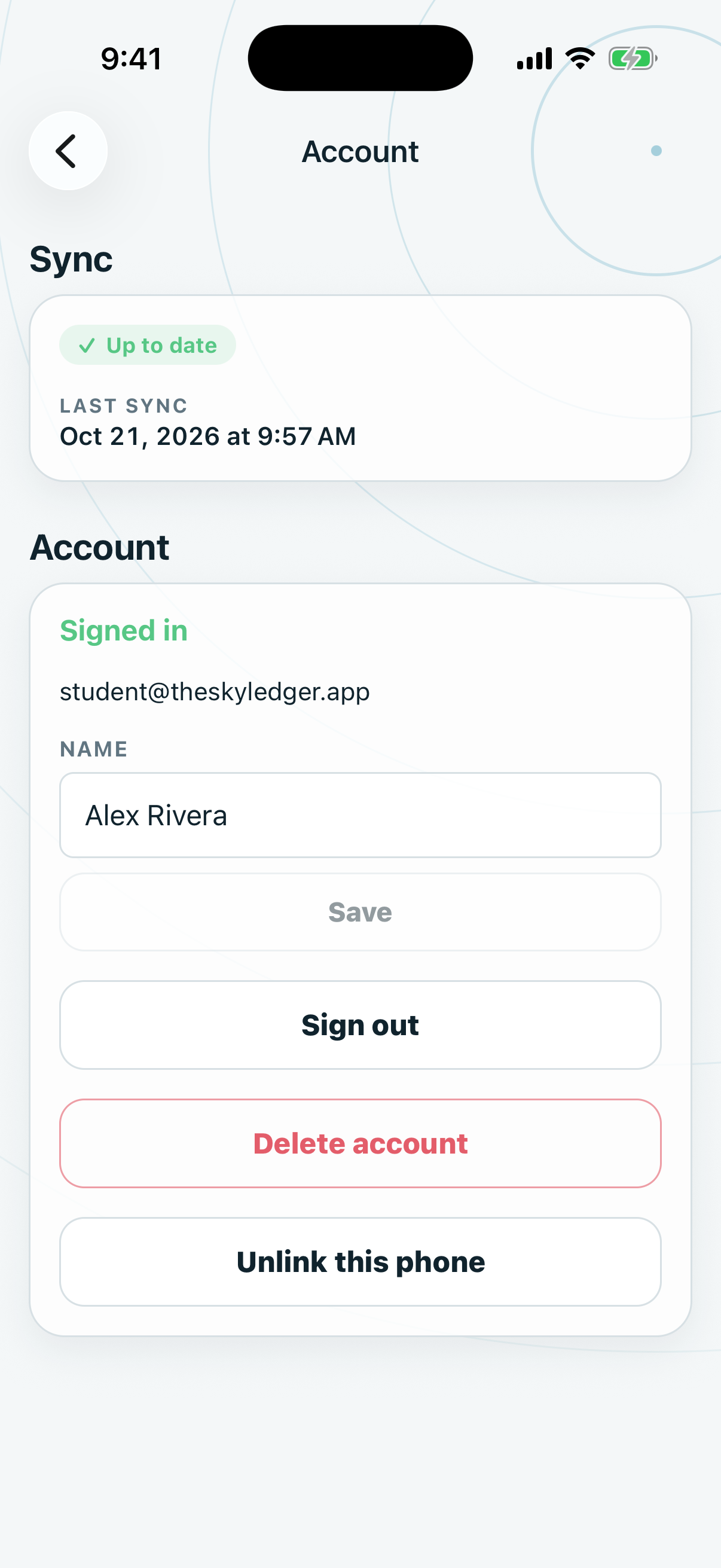
Tap Check for updates to look for changes from the cloud.
Resolve a conflict
A conflict means the same record changed on two phones. Nothing is chosen for you.
- On the Account screen, find Conflicts. Or tap Review conflicts.
- Compare This device and Cloud.
- Choose one button.
- Tap Continue.
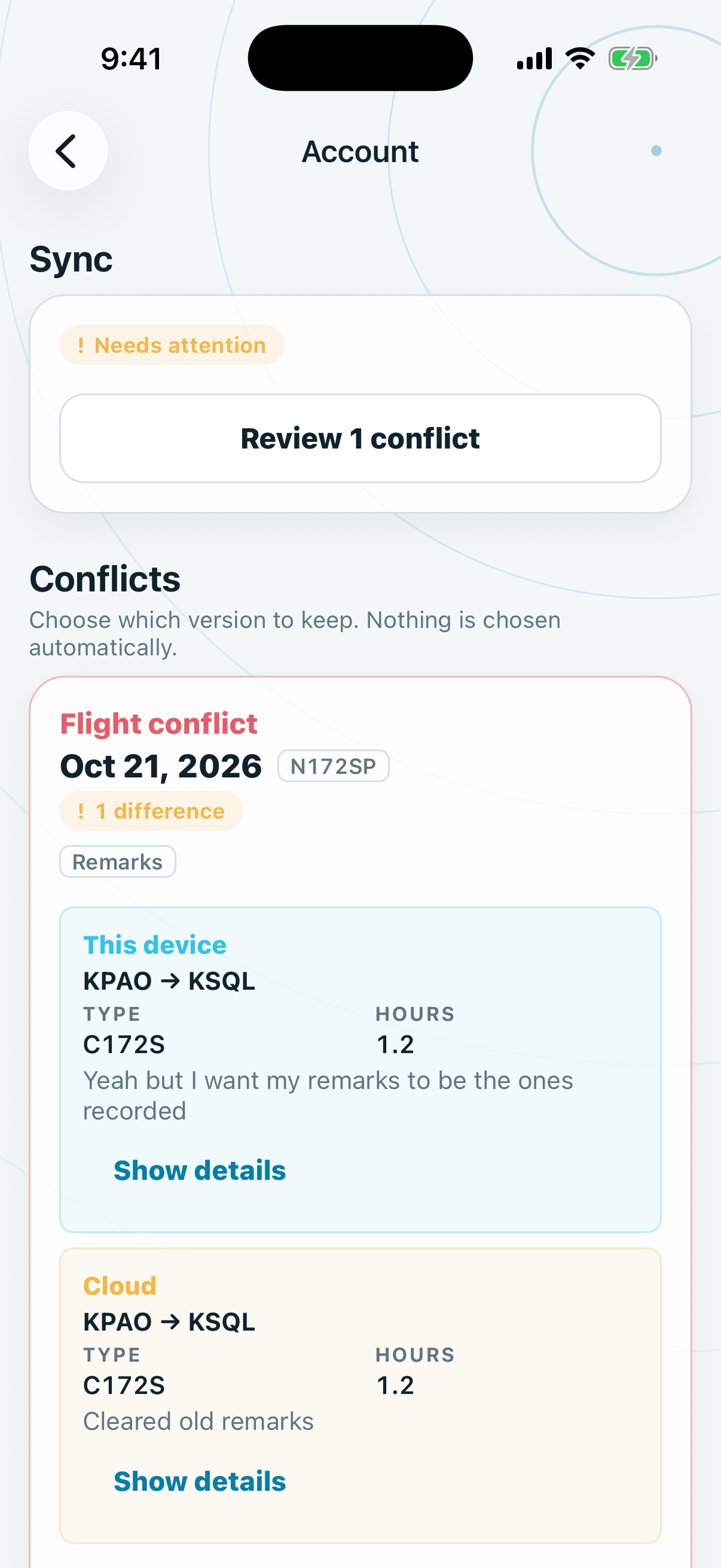
For flights:
- Keep mine. Your version becomes current and uploads. The cloud version stays in history. If your flight is signed, it is kept and a reviewed correction is added.
- Use cloud. The cloud version becomes current. Your version stays in history.
- Keep both. The cloud version stays on this flight and yours is added as a separate flight. Your totals may go up.
Use cloud and Keep both are not available for a signed flight.
Aircraft and people conflicts offer Keep mine and Use cloud. Past flights are not changed.