 SkyLedgr
Get an endorsement signed
Pick one way.
- In person on your phone. Use it when the instructor is with you. Nobody needs an account. The drawn signature is witnessed on your phone. SkyLedgr does not check who the instructor is.
- Email link. Use it when the instructor is not with you and does not use SkyLedgr. The instructor needs no app and no account. You must be signed in. The link works for 14 days.
- Paired instructor. Use it when the instructor uses SkyLedgr and is paired with you. They sign in their own app. You must be signed in.
Email link and paired signing are sealed by SkyLedgr. In person signing is not.
Write the draft
- Open More, then Endorsements.
- Tap New endorsement.
- Under Authority, choose FAA or TC.
- Tap the endorsement you need. Use Search to find it, or tap Free text to write your own.
- Enter Student name and the other fields.
- Read the Preview. Items in amber still need a value.
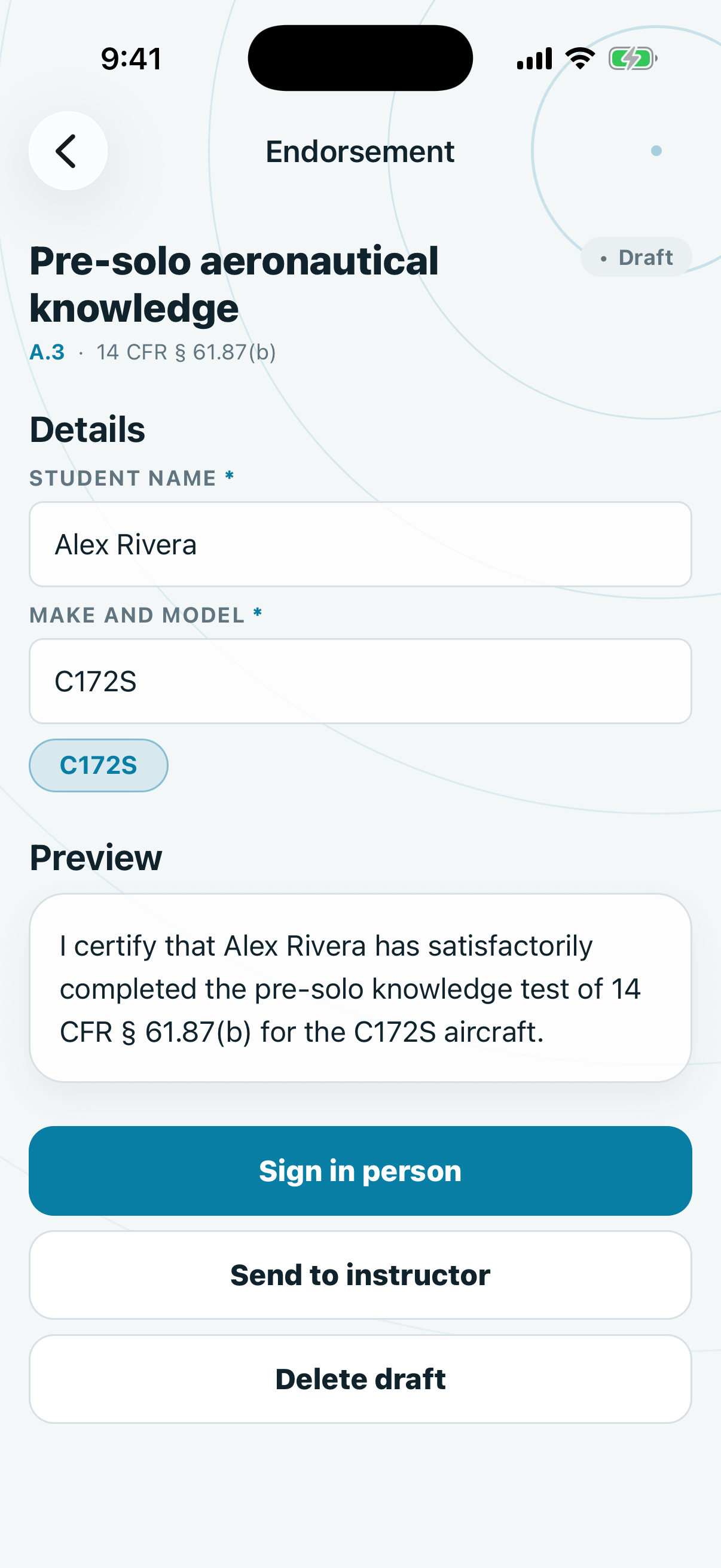
Drafts save as you type. Drafts stay on this phone and never sync.
Sign in person
- Open the draft.
- Tap Sign in person.
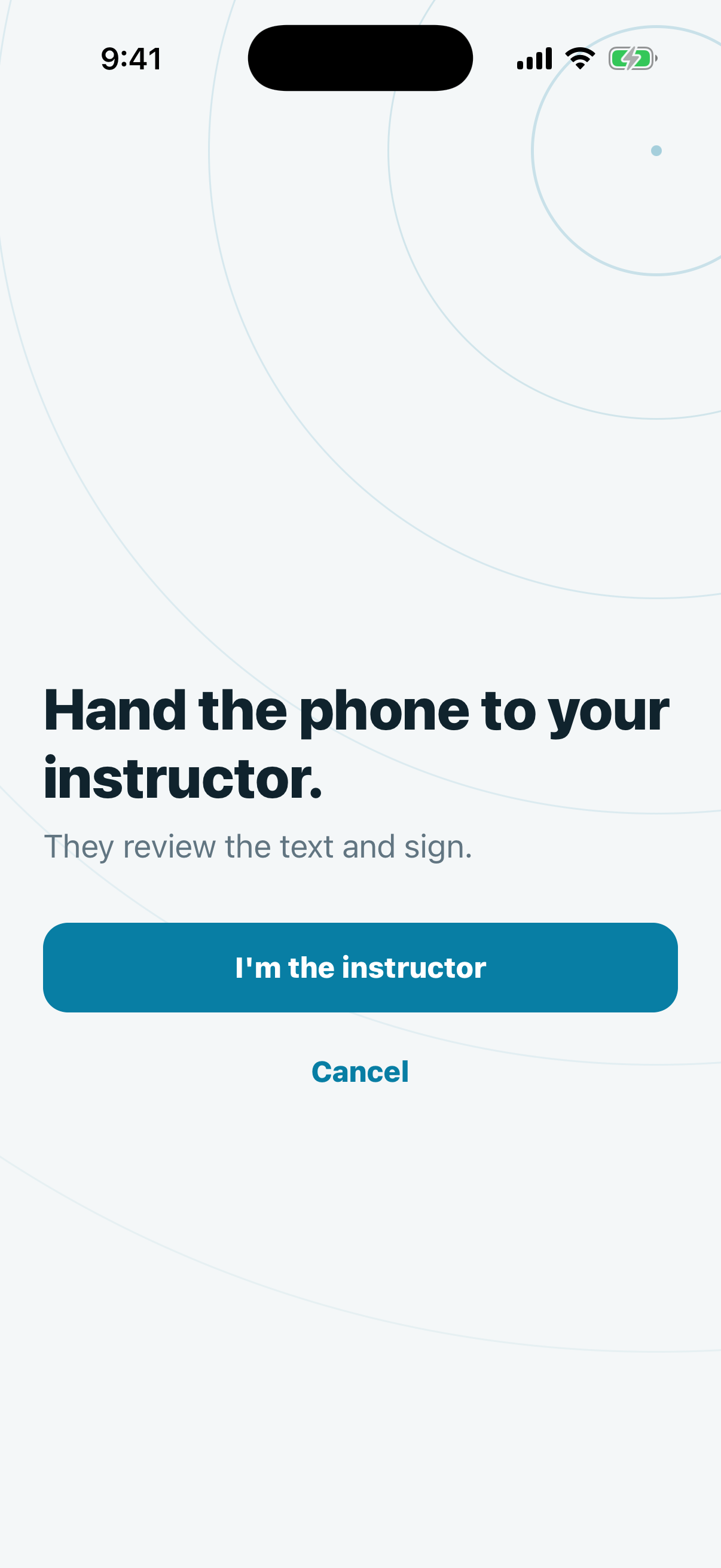
- Hand the phone to your instructor.
- The instructor taps I'm the instructor.
- The instructor reads the text and fills in the fields. See Sign as an instructor.
- The instructor draws the signature.
- The instructor ticks I reviewed this endorsement and I am signing it.
- The instructor taps Sign.
- Take the phone back and tap Done.
Send by email link
- Open the draft.
- Tap Send to instructor.
- If asked, tap Sign in and sign in.
- If you have paired instructors, tap Someone else.
- Enter the instructor's email in Instructor email.
- Tap Send.
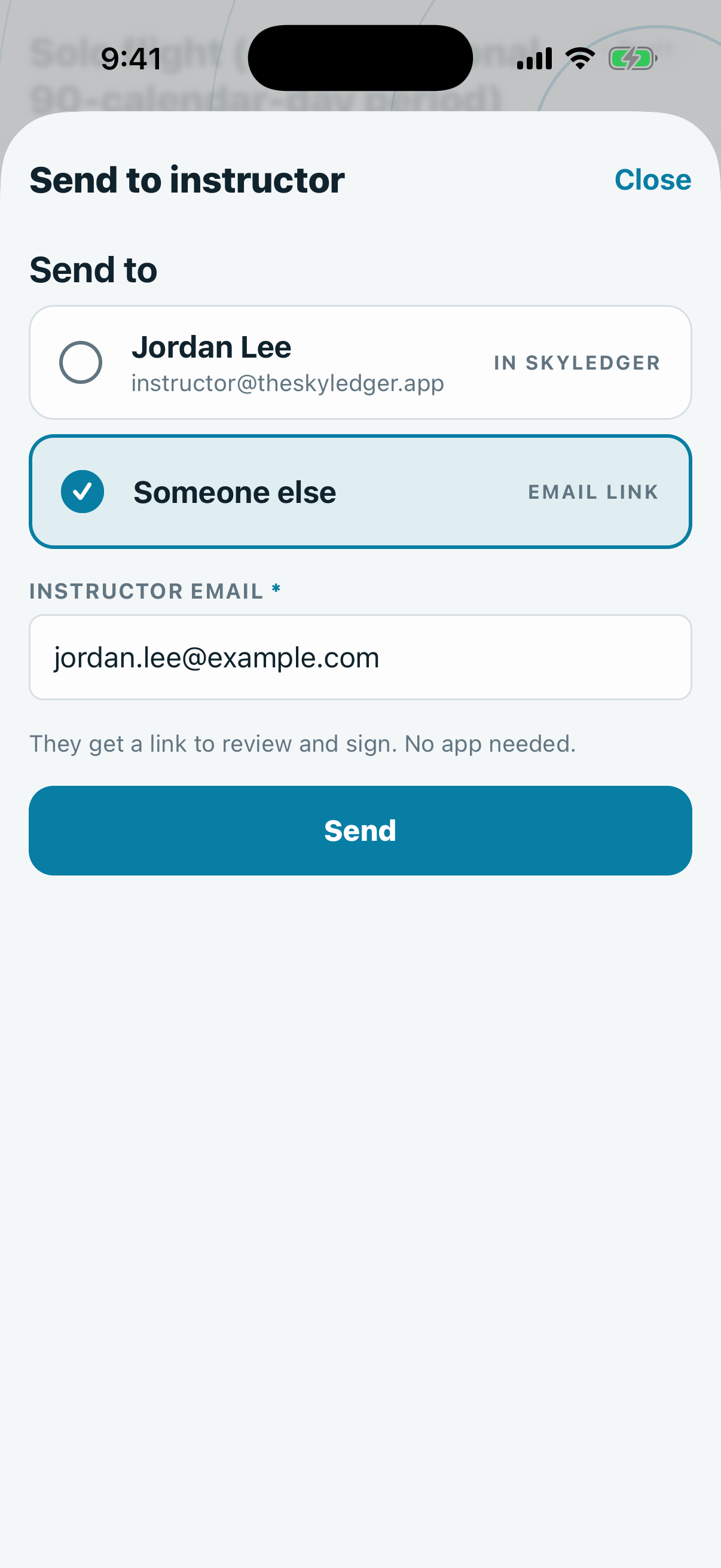
The draft shows Waiting and is locked. The instructor gets an email with a link. See Sign as an instructor.
To take it back, open the draft and tap Cancel request. The link stops working. An unsigned request expires after 14 days and the draft unlocks.
Send to a paired instructor
- Pair with the instructor first. See Pair with an instructor.
- Open the draft.
- Tap Send to instructor.
- Under Send to, tap the instructor. The first paired instructor is already selected.
- Tap Send to followed by their name.
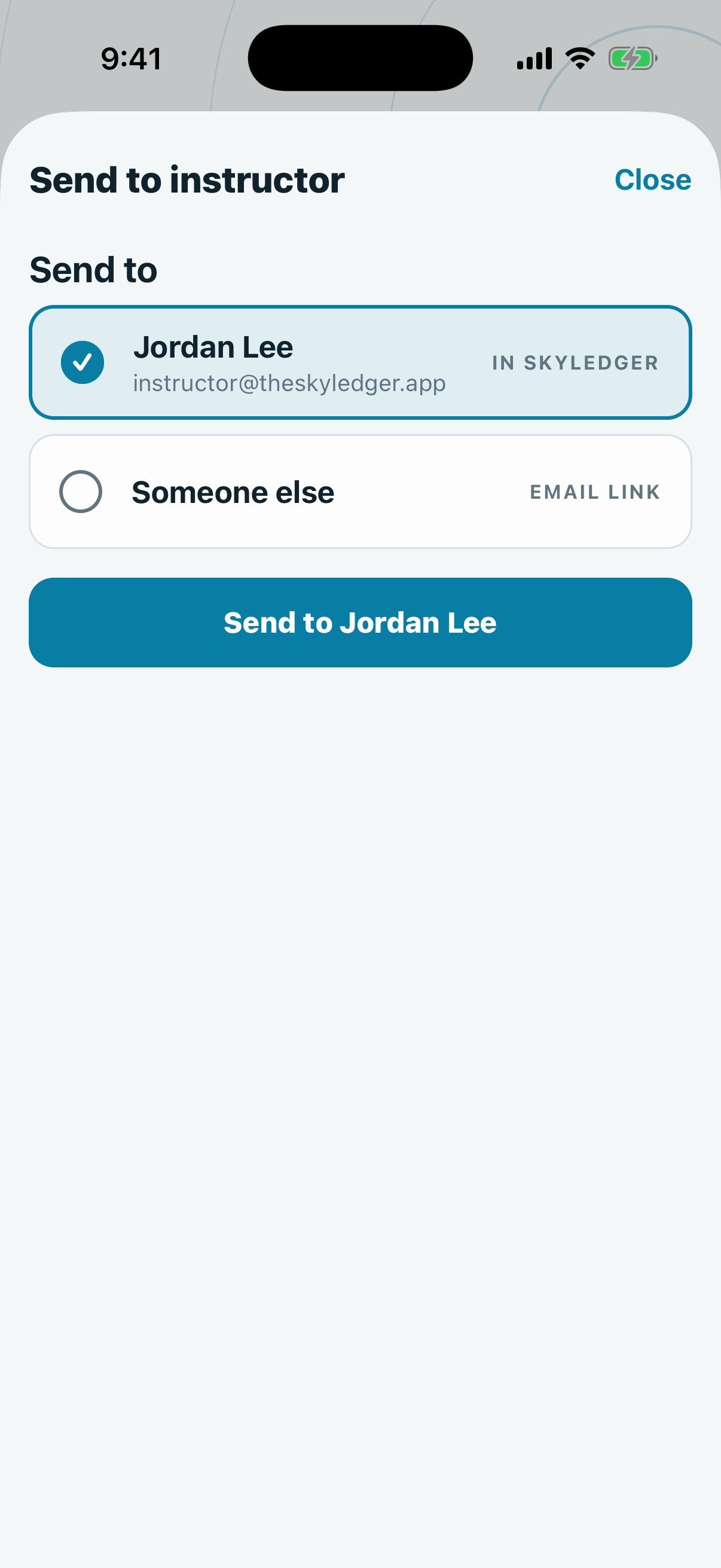
The instructor gets a notification and an email. The draft shows Waiting and is locked. To take it back, tap Cancel request. If they decline, or 14 days pass, the draft unlocks.
After your first request, SkyLedgr asks to send notifications. Allow it, and you get one when the instructor signs or declines. Tap it to open the endorsement.
After it is signed
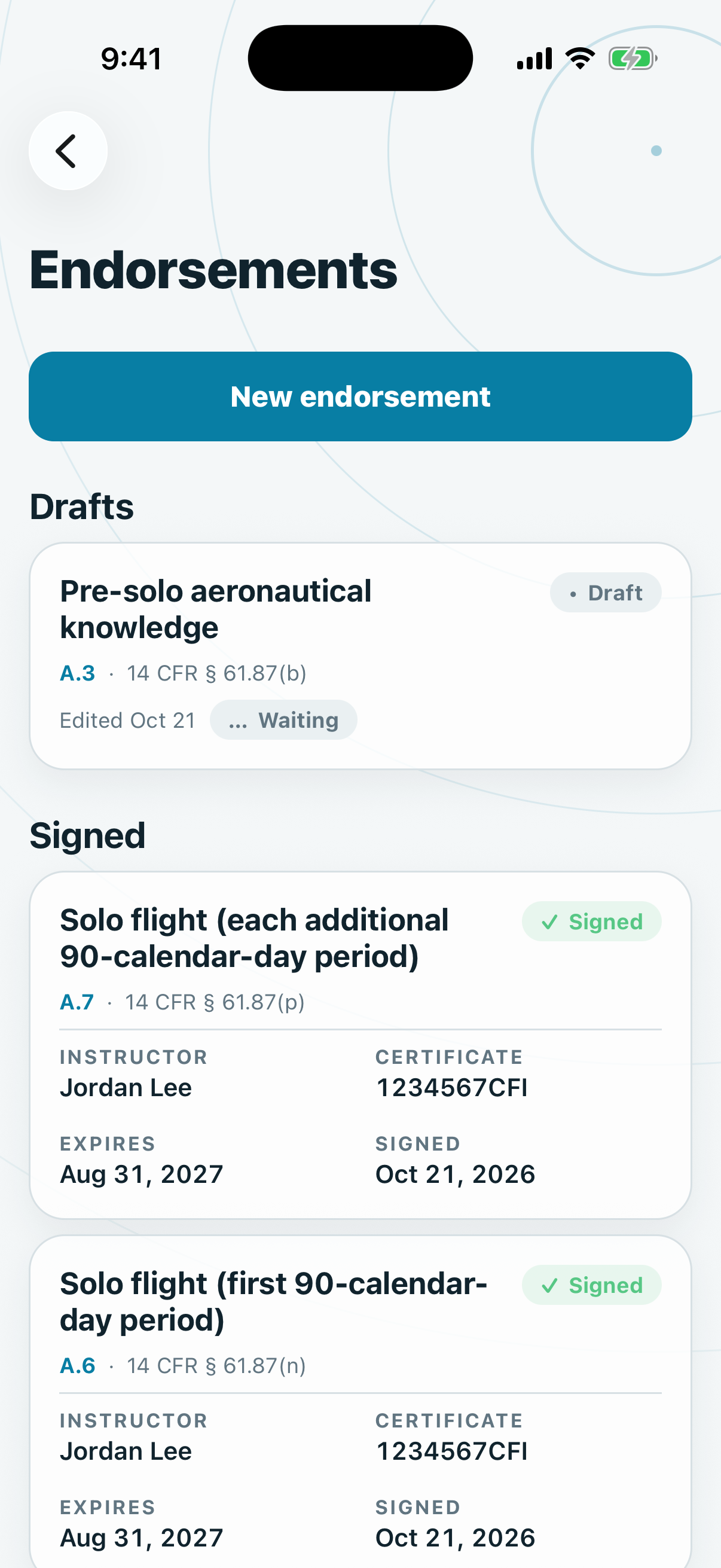
- Open More, then Endorsements.
- Find the endorsement under Signed.
The signed record replaces the draft. Signed endorsements sync to your account when you are signed in.
Fix a mistake
A signed endorsement cannot be edited.
- Open the signed endorsement.
- Tap Correct.
- Fix the draft and get it signed again.
The new endorsement supersedes the old one. The old one shows Superseded.