 SkyLedgr
Pair with an instructor
Both people need a SkyLedgr account and both must agree. A pairing does not check anyone's certificate and does not share your logbook. A green Reviewed chip on an instructor means SkyLedgr reviewed their certificate and the review is current. Without it, the pairing shows "Credentials not verified."
Sign in first. See Cloud sync.
Invite the other person
- Ask the other person to open More, then Pairing.
- Ask them for the email shown under Your account email.
- Use that exact email. It can differ from the email they use elsewhere, for example when they signed in with Apple.
- On your phone, open More, then Pairing.
- Under My role, tap Student or Instructor. This is your own role.
- Enter their email in Their email.
- Tap Invite.
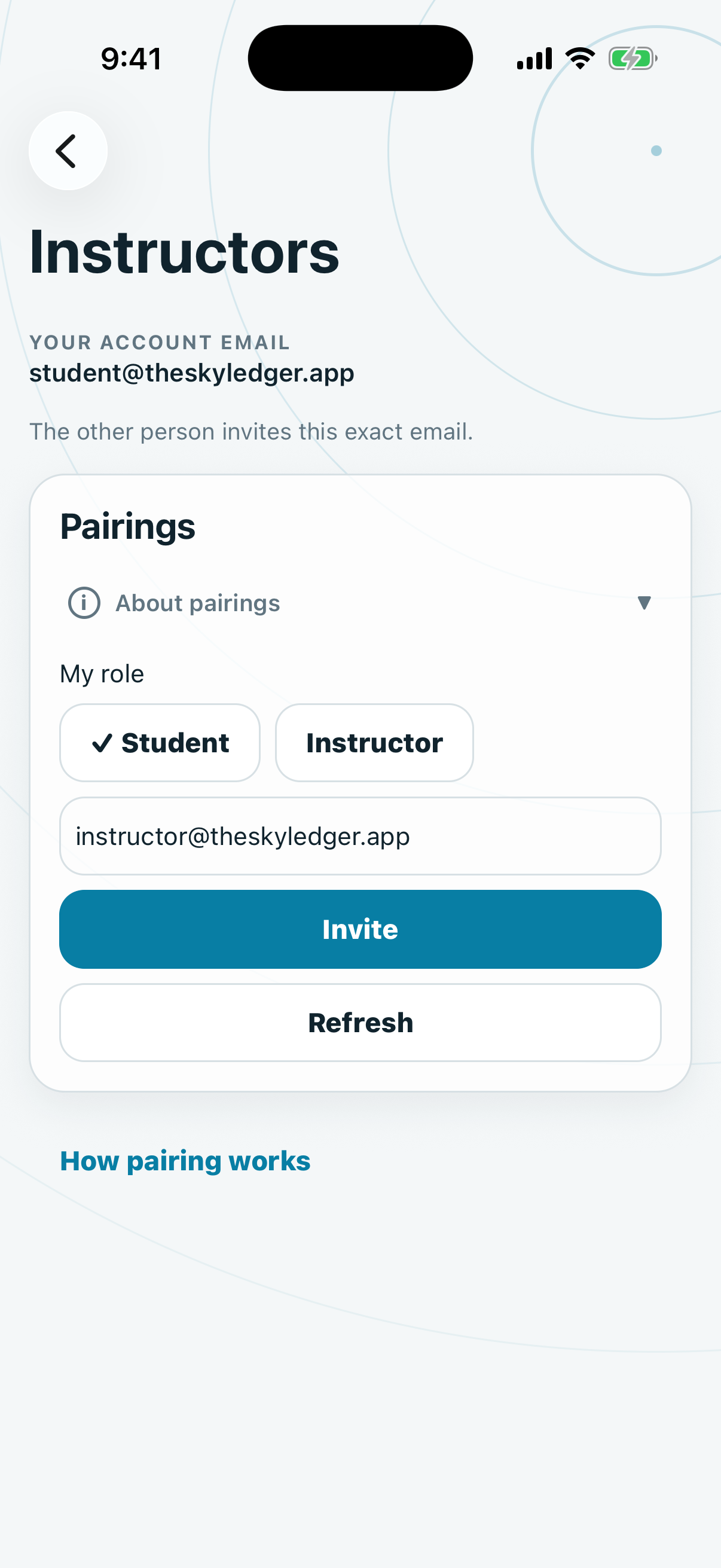
The pairing shows Pending until they accept. To withdraw it, tap Cancel.
Accept an invitation
- Open More, then Pairing.
- Tap Refresh.
- Find the pairing marked Pending.
- Tap Accept.
- Tap Confirm.
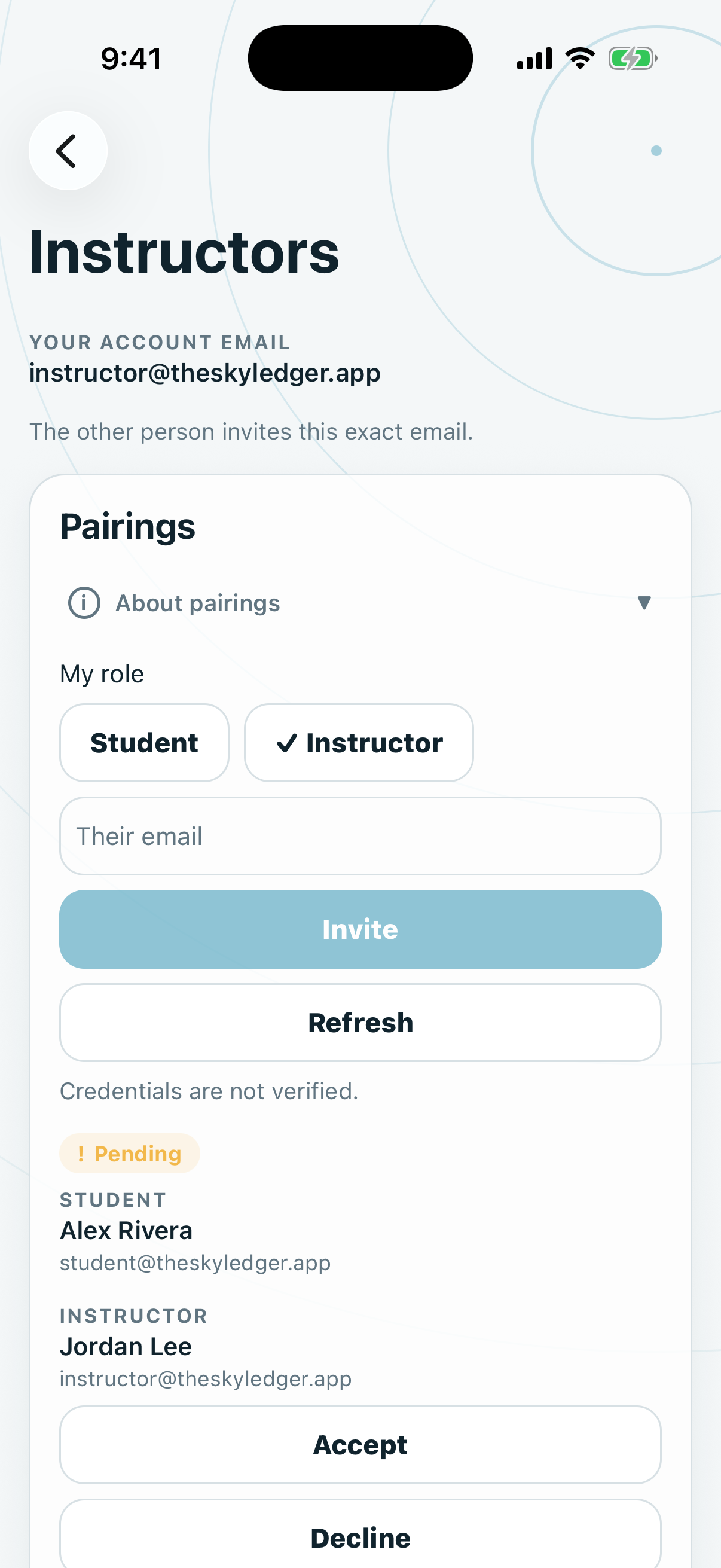
The pairing shows Active. Tap Decline instead to refuse it.
End a pairing
- Open More, then Pairing.
- Find the pairing marked Active.
- Tap End.
- Tap Confirm.
Either person can end a pairing. No new requests can be sent. Records and signatures that already exist stay.